
Source: Pawprint Interactive Entertainment
Dear Pathfinder,
We have received reports that the game may crash on some systems equipped with 13th- or 14th-Gen Intel Core desktop processors.
The root cause: 13th and 14th-Gen Intel processors have a major defect that degrades over time, leading to frequent crashes (shader decompilation errors, out-of-VRAM errors, memory access violations) and even Windows blue screens.
- For details, see Intel’s official statement: https://community.intel.com/t5/Mobile-and-Desktop-Processors/July-2024-Update-on-Instability-Reports-on-Intel-Core-13th-and/m-p/1617113
If you repeatedly experience crashes, unexpected exits, freezes, graphical glitches, or see an out-of-VRAM error that closes the game, the cause may be an unstable 13th or 14th-Gen Intel processor running an outdated microcode version.
To keep the game running smoothly, we strongly recommend following Intel’s or your motherboard manufacturer’s instructions to update your motherboard’s BIOS to the latest version and use Intel microcode version 0x12B or later.
Below is a list of affected CPU models and the specific steps to fix crashes on 13th and 14th-Gen Intel processors.
1. Affected processor models:
13th Gen Intel Core
•i5-13600K
•i5-13600KF
•i7-13700
•i7-13700F
•i7-13700K
•i7-13700KF
•i9-13900
•i9-13900F
•i9-13900K
•i9-13900KF
14th Gen Intel Core
•i5-14600K
•i7-14700
•i7-14700F
•i7-14700K
•i7-14700KF
•i9-14900
•i9-14900F
•i9-14900K
•i9-14900KF
2. Recommended troubleshooting steps:
(1) Download Intel XTU
You can download and install Intel XTU directly from the official link:
https://www.intel.com/content/www/us/en/download/17881/intel-extreme-tuning-utility-intel-xtu.html
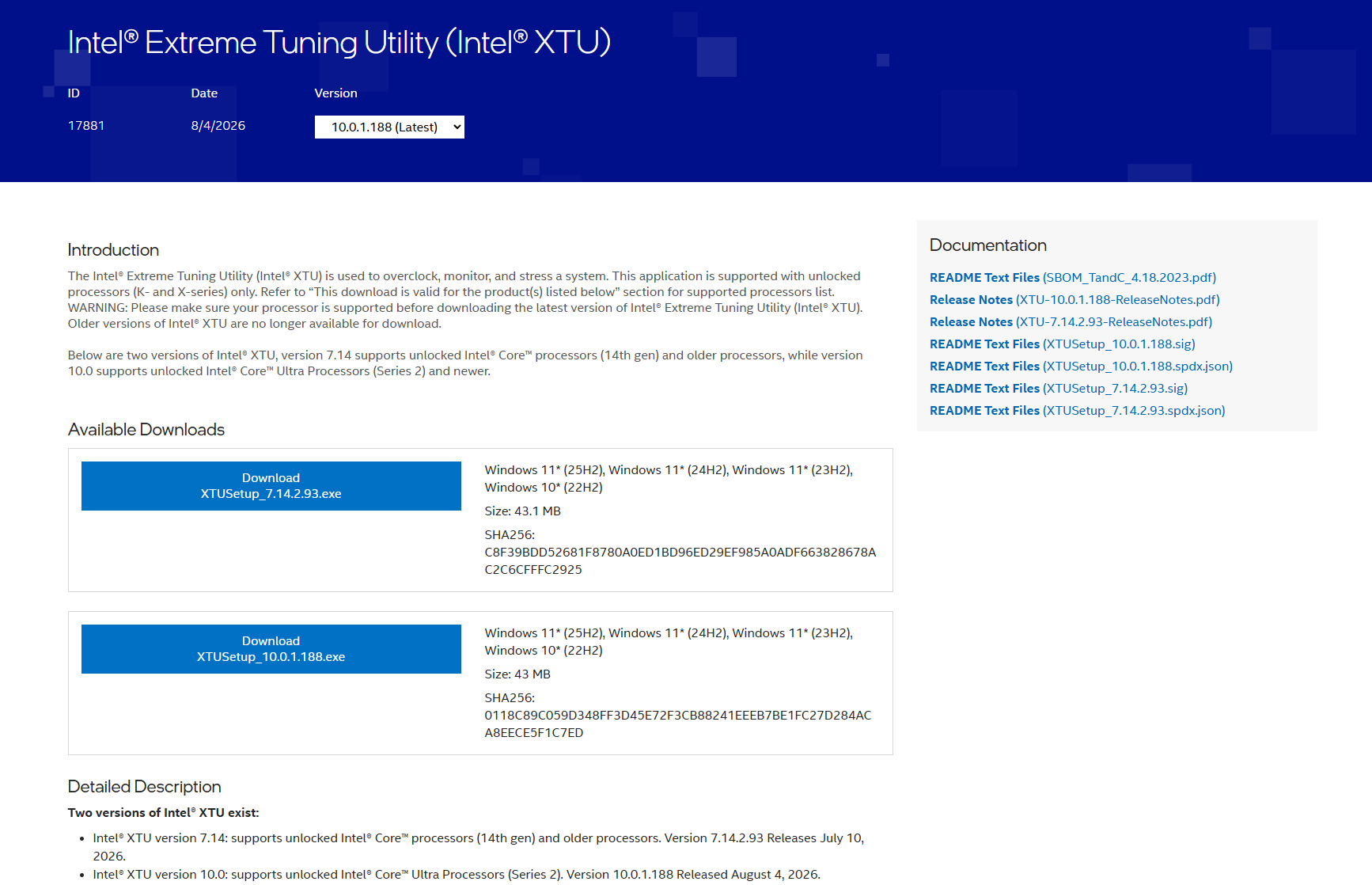
Or click [Go Now] in the in-game pop-up to open the Intel XTU download page:

(2) Lower the Core Multiplier Ratio
After installing Intel XTU, restart your PC and open the application.
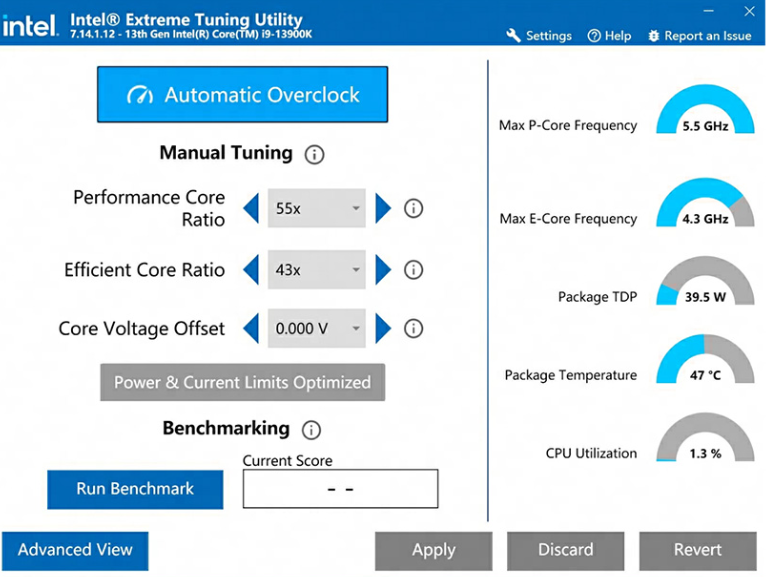
Lower the Performance Core multiplier ratio by 2 to 3 steps. For example, here we’ve adjusted the multiplier from 55x down to 53x.
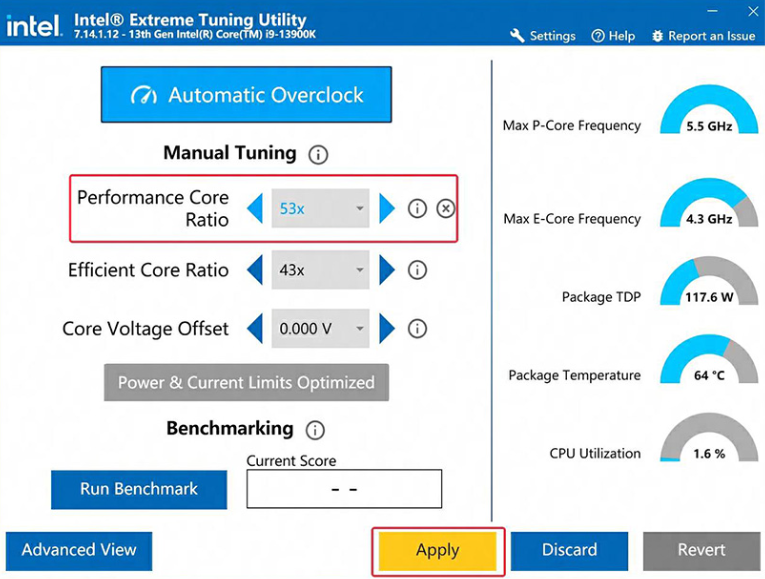
Click Apply to confirm the change, then try launching the game again.
- If the problem persists, please contact in-game support for further assistance from our team.